How do you set up Layerseven TV on a Firestick or Android TV box?
Published July 31, 2026 · 9 min read
You set up Layerseven TV on a Firestick or Android TV box by installing a player app, entering the login details from your welcome email, and letting the channel list load, and the whole Layerseven TV Firestick setup takes about ten minutes on a device that supports it. The one real warning for 2026 comes first: not every Fire TV stick sold this year can still install third-party apps, so the device check below matters more than any other step. On a supported stick or box, the process is the same one I have run dozens of times: get the free Downloader app, pull the player APK, log in with the Xtream Codes option, and watch. The errors that trip people up all have known fixes, and they are all in this guide.
I have run the Layerseven TV Firestick setup on a Fire TV Stick 4K Max, an Onn 4K Pro box, and an aging Nvidia Shield, and the honest truth is that the install itself is the easy part. What wastes evenings is discovering after the fact that a brand-new stick physically cannot run the app, or staring at an "authorization failed" message that turns out to be one wrong character in the server URL. So this guide does two things a generic setup page does not: it starts with the 2026 device warning that decides whether the rest applies to you at all, and it ends with the fix ladder for every error I have actually hit. If you have not started yet, grab your free 24-hour trial first so you have real login details to follow along with.
Which devices can still run Layerseven TV in 2026?
Most Fire TV and Android TV devices work, but there is one new trap this year. Amazon has started moving Fire TV sticks to a new operating system called Vega OS, and sticks running it cannot sideload apps at all. The Fire TV Stick 4K Select released in 2025 and the Fire TV Stick HD from 2026 are both Vega OS devices, which means the install method in this guide simply does not exist on them. There is no Downloader, no APK install, no workaround. If yours is one of those two, no IPTV player will install on it, and that is a device problem, not a service problem.
The good news is that the two sticks most people actually buy for IPTV are still fine. The Fire TV Stick 4K Max (2nd generation) and the Fire TV Stick 4K Plus both still run Fire OS, which means sideloading works exactly as it always has. The 4K Max is the one I reach for: Wi-Fi 6E, 16 GB of storage, and enough headroom that the player app never feels strained. If you are buying a device specifically for IPTV in 2026, the check takes ten seconds and saves you a return: look for "Fire OS" on the box or the listing, and treat "Vega OS" as a stop sign.
Android TV boxes are simpler, because they install apps straight from the Google Play store with no sideloading at all. The Onn 4K Pro is the budget pick and it has one quiet advantage over every Firestick: a built-in Ethernet port, so you can wire it straight to the router. The Nvidia Shield is six-year-old hardware and still the community favorite, partly for its Gigabit Ethernet and USB ports. If your household watches on more than one screen, check the pricing page for the multi-connection plans before you decide which room gets which device, because one Layerseven TV Firestick setup in the living room and one Onn box in the bedroom can share a single multi-connection plan.
How do you install the Layerseven TV app on a Firestick?
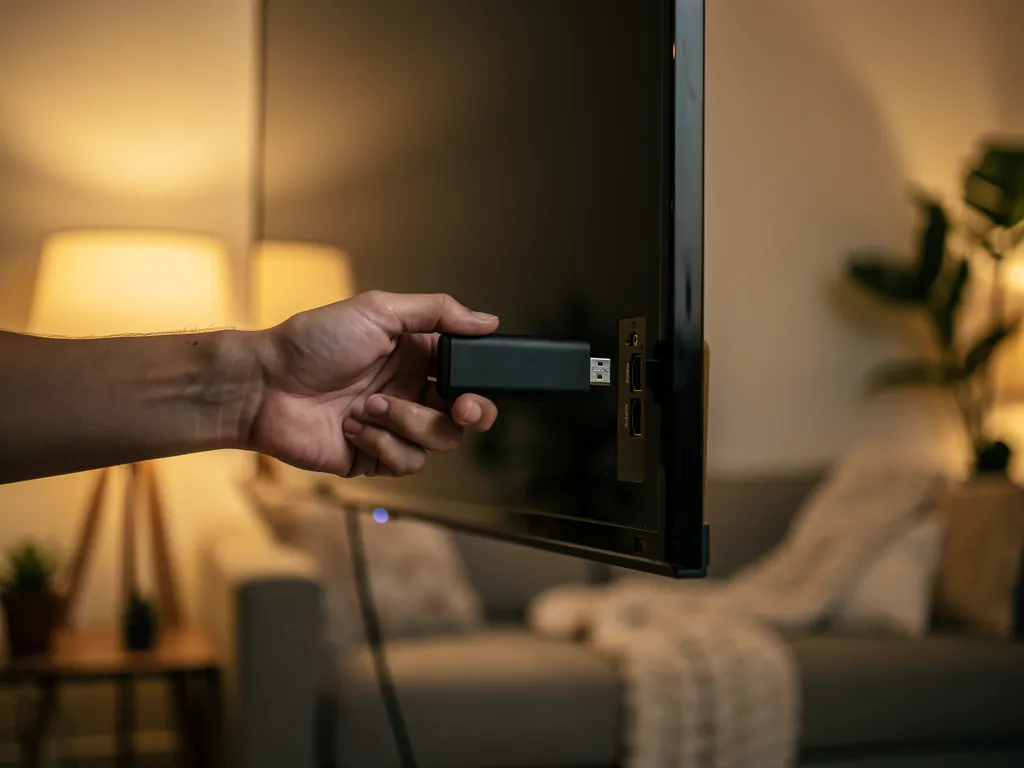
On a Fire OS stick you install the player with the free Downloader app, and the whole thing takes about five minutes. You are not modifying the device or voiding anything. You are just turning on one developer option and installing an app from outside the Amazon store, the same way millions of Firestick owners install players and utilities every day.
- From the Fire TV home screen, find the search icon and type "Downloader". Install the orange app by AFTVnews. It is free, official, and the standard tool for this job.
- Go to Settings, then My Fire TV, then Developer Options, and switch on "Install unknown apps" for Downloader. On some sticks the option reads "Apps from Unknown Sources". Same switch, older name.
- Open Downloader and allow the storage permission it asks for. It needs that to save the app file it downloads.
- In the Downloader URL field, enter the link for your player app and press Go. The current Downloader code for IPTV Smarters Pro is 8232771 (shortcodes rotate, so if one ever fails, the full web address of the APK works too).
- When the file finishes, the install prompt appears. Press Install, then Done, and delete the leftover APK file when Downloader offers. Keeping it just wastes the stick's limited storage.
- The player now sits in your apps list. Move it to the front row so it is the first thing you see when you turn the TV on.
On an Android TV box you skip all of that. Open the Google Play store, search the player by name, and press Install. That is the entire step.
How do you log in with your Layerseven TV details?
You log in with the Xtream Codes API option, using the three details in your welcome email: a server URL, a username, and a password. When you open the player for the first time it offers several login methods, and Xtream Codes API is the one you want. It pulls your live channels, movies, series, and the program guide in one go. The M3U playlist option works too, but it loads the guide separately and gives you a clunkier result, so only use it as a fallback.
- Open the player and choose "Login with Xtream Codes API".
- In the name field, type anything you like. It is only a label for this connection, so "Living Room" is fine.
- In the server URL field, paste the URL from your welcome email exactly. It starts with http and includes a port number, something like http://server-address:8080. No spaces, no trailing slash, and no https unless your email says so. Nine out of ten login failures trace back to this one field.
- Enter the username and password exactly as they appear. Both are case-sensitive, and a capital letter in the wrong place is a silent fail. If your email client lets you copy them, copy rather than type.
- Press Add User or Login, then let the app download the channel list and guide. The first sync takes a minute or two on a big list. That is normal, and it only happens once.
That is the whole setup. The channel grid fills in, the guide populates, and you are watching. If you picked TiviMate as your player, the same three details go in under Settings, then Playlists, then Add Playlist, choosing the Xtream Codes option there. TiviMate's premium upgrade (about $9.99 a year or $33.99 lifetime, covering 5 devices) unlocks recording, favorites sync, and a proper grid guide, and it is the one app purchase I consider genuinely worth it on a main TV.
Firestick or Android TV box: which should you use for Layerseven TV?
Both run the Layerseven TV Firestick setup equally well once installed, so the real question is which device fits your room and your habits. Here is the honest comparison from living with all three:
| Fire TV Stick 4K Max | Onn 4K Pro (Android TV) | Nvidia Shield Pro |
|---|---|---|
| Sideload required (Downloader) | Play store install, no sideload | Play store install, no sideload |
| Wi-Fi 6E, no Ethernet port built in | Built-in Ethernet port | Gigabit Ethernet plus 2 USB 3.0 ports |
| 16 GB storage, compact stick | Budget price, small box | Premium price, TiviMate DVR friendly |
| Best for: most people, one TV | Best for: wired setups on a budget | Best for: power users, recording |
My own main screen runs the 4K Max, and the only upgrade I ever bothered with was a cheap Ethernet adapter. People report that wiring the device fixes roughly 40 percent of stubborn buffering cases, because it removes Wi-Fi jitter from the equation entirely. The Amazon official adapter (about $17, micro-USB) fits older sticks, and a USB-C adapter (around $32) fits the 4K Max. The Onn box gets you the same result with no adapter at all, which is why it has quietly become the budget recommendation in every IPTV community thread I read.
What do the common setup errors mean, and how do you fix them?
Three errors cover almost everything that goes wrong during setup, and each has a short fix ladder. Work them top to bottom, because the most common cause sits at the top of each list.
"Authorization failed" or "Failed to authorize for above host." This is the big one in every Layerseven TV Firestick setup thread, and it almost always means the login details, not the service. Check the server URL first: no trailing slash, no double slash, port number included. Retype the username and password by hand instead of pasting, in case a stray space came along. If it still fails, restart the app and try once more, then drop us a message through the contact page so we can check your line on our side. One community thread that stuck with me had a user whose three-year-old install suddenly threw parser errors after an app update, proof that sometimes the drift is in the software, not anything you typed.
"Parse error" or "App not installed" while installing the APK. The file did not download completely, or your stick rejected it. Delete the partial file in Downloader, restart the stick (Settings, My Fire TV, Restart), and run the download again on a stable connection. If you are on one of the Vega OS sticks from the device section above, this is where you find out: the install will refuse no matter what, and the answer is a different device, not another attempt.
Channels load but the guide stays empty. Give the first sync a few minutes, then refresh the guide inside the app's settings. An empty guide is almost never a login problem. It is the app still chewing through a large data set, and it sorts itself out.
And if your Layerseven TV Firestick setup works but playback stutters at night, that is a different guide entirely: the diagnosis in why IPTV buffers at night walks through the three causes, and the ISP throttling test shows you how to prove or rule out your provider in one evening.
What is the smartest way to try Layerseven TV on a Firestick before paying?
Set it up during a free trial, at the busiest hour you can find, on the device you actually watch. That order matters. A trial tested at 2pm on a Tuesday tells you nothing, because every oversold service in the world looks fine when nobody is watching. Start your free 24-hour trial on a weekend evening, run the install above, then put on a live event and leave it playing. If the stream holds through prime time on your worst night, it will hold every other night of the year. The full 20-minute testing method is in how to test an IPTV free trial, and the deeper reasoning behind judging a service by failure patterns instead of channel counts is in the Layerseven TV review.
When the trial passes, the pricing page shows the per-month cost dropping on the longer plans, and the order page gets a real human on chat if you would rather be walked through anything. Ten minutes of setup, one busy evening of testing, and you know exactly what you are paying for. That is how this should work everywhere.